Build a Custom Video Conference App with plugNmeet Hybrid Integration
plugNmeet's hybrid integration model provides a fast and flexible path for building custom video conferencing apps for native platforms like iOS, Android, Flutter, React Native, or desktop.
This architecture combines a native media layer with the complete plugNmeet web client, which runs inside a WebView. The native application handles all media publishing (microphone, camera, and screen share), while the web client provides the feature-rich meeting interface. This approach allows developers to leverage native performance for media handling while avoiding the need to build a complex conferencing UI from scratch. It is especially useful for enabling features like screen sharing on mobile, which is not well-supported in mobile browsers.
See it in Action: Demo Applications
Before diving into the technical details, you can see this hybrid integration in action by exploring our open-source demo applications.
You might notice that plugNmeet does not provide its own mobile SDK. This is a deliberate design choice. Because plugNmeet uses LiveKit for its media layer, you can directly use LiveKit's excellent native SDKs (for iOS, Android, React Native, etc.) to handle all media-related tasks.
Instead of a restrictive SDK, we provide a flexible pattern: run the feature-rich plugNmeet web client in a WebView for the UI, and use LiveKit's native SDKs for the media layer. Our demo apps show just how simple this is to implement, giving you native performance and full control without having to build a UI from scratch.
Check the demo apps in our plugNmeet mobile app repository to understand the pattern.
Architecture and Identity
The core of the hybrid model is representing a single logical user with two participants in the LiveKit room:
| Identity | Used By | Permissions |
|---|---|---|
[userID] | Web client in WebView | Subscribe-only |
[userID]-native | Native app | Publish-only |
The web client renders the UI and subscribes to all media streams, while the native app connects separately to publish its own media. The web client recognizes that tracks from a *-native identity matching its own userID should be treated as local media, displaying them in the correct UI tile without echo. This allows the existing web UI to function with minimal changes.
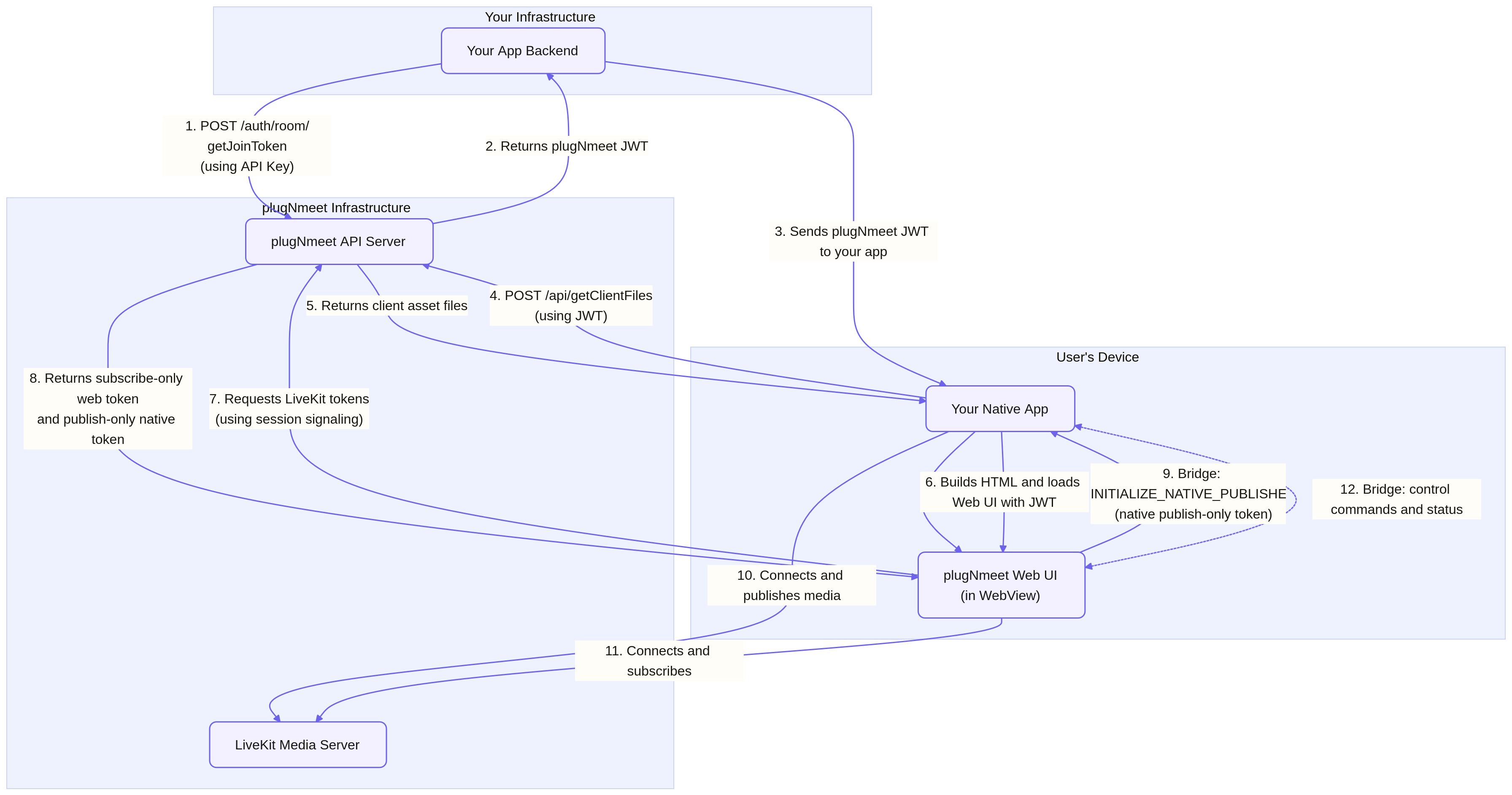
End-to-End Workflow
Step 1: Get an Access Token
The workflow starts on your backend. To authorize a user, your server calls the plugNmeet API to generate a join token. For a hybrid app, it is crucial to set the client_type in this request.
- Backend: Call
POST /room/getJoinToken. - In the request body: Set
user_info.client_type = "HYBRID_WEB". - Backend: Receive the JWT (
access_token) from the plugNmeet server and pass it securely to your native app, along with yourserverUrl.
Step 2: Load the Web Client in a WebView
Once the native app has the access_token, it must load the plugNmeet web client into a WebView. There are two primary methods for this:
Option A: Load the Hosted Web Client Directly (Simple)
This is the easiest approach. Construct the URL with the access token and load it.
// Example for Android
val url = "${serverUrl.trimEnd('/')}/?access_token=${jwt}"
webView.loadUrl(url)
To apply a custom look and feel, you can add a custom_design query parameter to the URL. The value should be a URL-encoded JSON string. This is often used to change the logo and colors.
For a full list of supported parameters, please refer to our Design Customisation Guide for details.
// Example for Android with custom design
// The custom_design value is a URL-encoded JSON string like:
// {"logo":"https://your-domain.com/logo.png","primary_color":"#004D90"}
val customDesign = "%7B%22logo%22%3A%22https%3A%2F%2Fyour-domain.com%2Flogo.png%22%2C%22primary_color%22%3A%22%23004D90%22%7D"

val url = "${serverUrl.trimEnd('/')}/?access_token=${jwt}&custom_design=${customDesign}"
webView.loadUrl(url)
Option B: Build a Custom HTML Shell (Advanced)
This gives you maximum control. The native app calls POST /api/getClientFiles using the JWT for authentication (e.g., Authorization: <access_token>). This endpoint is designed for native apps and provides the same assets as the server-side /auth/getClientFiles endpoint, which uses API Key/Secret authentication. See the Get Client Files API for response details. The app then builds an HTML shell in memory from the returned assets and loads it into the WebView.
Even with this method, client-side customizations can be applied by injecting a window.plugNmeetConfig object. See our Design Customisation Guide for details.
Step 3: Enter Hybrid Mode
The web client validates the session by calling POST /api/verifyToken. It then enters hybrid mode based on one of two conditions:
- Token-Based (Recommended): The response from
verifyTokencontainsclient_type = HYBRID_WEB. - Configuration Override: The native app injects
force_hybrid_web: trueinto thewindow.plugNmeetConfigobject. This forces hybrid mode regardless of the token'sclient_typeand is useful for testing or custom URL schemes.
Step 4: Hand-Off to Native Publisher
In hybrid mode, the plugNmeet server provides two LiveKit tokens to the web client: a subscribe-only token for itself and a publish-only token for the native twin.
The web client connects to LiveKit, then passes the publish-only token to the native app over the communication bridge using the INITIALIZE_NATIVE_PUBLISHER action. Your native app now has everything it needs to connect to LiveKit and start publishing media.
Communication Bridge API
Communication between the WebView and the native host is handled by a message bridge defined in plugnmeet_native_bridge.proto. The wire format is proto3 JSON text.
Web Client to Native Host
| Action | Payload | Description |
|---|---|---|
INITIALIZE_NATIVE_PUBLISHER | { livekitUrl, token, nativeUserId, e2ee? } | Provides the native host with the LiveKit URL and publish-only token. |
PUBLISH_NATIVE_MEDIA | { source } | Requests native publishing for MIC, WEBCAM, or SCREENSHARE. |
UNPUBLISH_NATIVE_MEDIA | { source } | Requests that the native app stop publishing the selected media source. |
MUTE_NATIVE_MEDIA | { source } | Mutes an already-published native track without unpublishing it. |
UNMUTE_NATIVE_MEDIA | { source } | Unmutes a previously muted native track. |
NATIVE_HEARTBEAT_PING | { ts } | Web-to-native keepalive message. |
TEARDOWN_NATIVE_PUBLISHER | {} | Requests that the native app disconnect from LiveKit and release media resources. |
Native Host to Web Client
| Action | Payload | Description |
|---|---|---|
NATIVE_MEDIA_STATUS | { source?, deviceId?, error? } | Confirms a native action or reports an error. |
NATIVE_TRACK_PUBLISHED | { userId, kind, source } | Notifies the web client that a native track was published. |
NATIVE_TRACK_UNPUBLISHED | { userId, kind, source } | Notifies the web client that a native track was unpublished. |
NATIVE_MEDIA_MUTED | { source, muted } | Confirms the native mute state. |
NATIVE_HEARTBEAT_PONG | { ts } | Native response to heartbeat ping. |
NATIVE_ERROR | { msg, context? } | Reports a generic error from the native host. |
E2EE Hand-Off
If end-to-end encryption is enabled, the plain text encryption key is handed to the native app as part of the INITIALIZE_NATIVE_PUBLISHER payload.
{
  "action": "INITIALIZE_NATIVE_PUBLISHER",
  "initializeNativePublisher": {
    "livekitUrl": "wss://livekit.example.com",
    "token": "<native_publish_only_livekit_token>",
    "nativeUserId": "<userID>-native",
    "e2ee": {
      "enabled": true,
      "key": "your-e2ee-plain-text-key"
    }
  }
}
Native App Implementation Checklist
Required
- Receive
serverUrland plugNmeet JWT from your backend. - Load the plugNmeet web client in a WebView.
- Implement the bridge logic to send and receive messages.
- Handle
INITIALIZE_NATIVE_PUBLISHERby connecting to LiveKit with the provided token. - Implement native media capture and publishing for
PUBLISH_NATIVE_MEDIA(mic & camera). - Implement
MUTE_NATIVE_MEDIA,UNMUTE_NATIVE_MEDIA, andUNPUBLISH_NATIVE_MEDIA. - Implement
TEARDOWN_NATIVE_PUBLISHERto clean up resources. - Send status messages back to the web client (
NATIVE_MEDIA_STATUS,NATIVE_TRACK_PUBLISHED, etc.). - Reply to
NATIVE_HEARTBEAT_PINGwithNATIVE_HEARTBEAT_PONG. - Implement a watchdog to tear down the native publisher if the WebView heartbeat stops.
Recommended
- Implement
PUBLISH_NATIVE_MEDIAfor screen sharing. - Treat repeated
INITIALIZE_NATIVE_PUBLISHERcalls as a full reinitialization. - Provide clear native permission prompts and error handling.
- Avoid embedding API keys or secrets in production apps.
Optional
- E2EE support.
- Native virtual background or camera effects.
- A custom device picker UI.
- Background mode and audio routing controls.